...

TUTORIAL

How to Install Pro-Streamz Player

Follow this step-by-step visual guide to download and setup Pro-Streamz on Fire TV or Android TV using Downloader.

Pro-Streamz Installation Infographic
Quick Downloader Code 2469707
1

Open Downloader App

From your Fire TV / Android TV home screen, locate and open the Downloader app.

2

Go to URL / Code Field

Use your remote to select the search input box labeled "Enter a URL, Search Term, or Short Code".

3

Enter the Code

Type 2469707 using the on-screen keyboard and press Go.

4

Wait for Redirect

You will see a redirect message. Wait a few seconds for the app link to load automatically.

5

Install Pro-Streamz

Once the APK file finishes downloading, click Install on the prompt.

6

Open Pro-Streamz

Click Open to launch the app, enter your subscription credentials, and start streaming!

Important Note: Make sure "Apps from Unknown Sources" is enabled in your device settings (Settings > My Fire TV > Developer Options) before starting the installation.
How to Install and Set Up Apps on Your Fire TV Stick App code for IPTV Smarters Pro Is 809636

  1. Start by installing the Downloader app. This tool will enable you to easily load the TCH Plus TV apps onto your Firestick

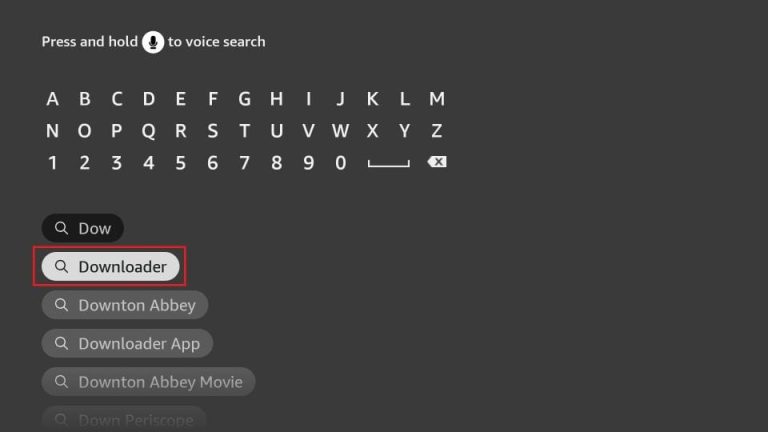
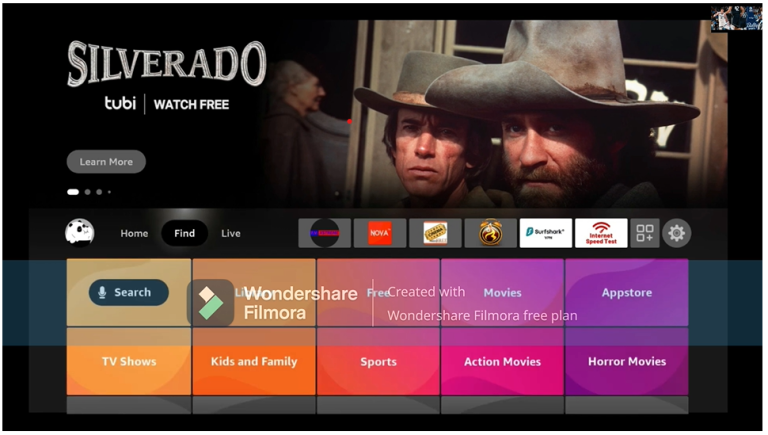
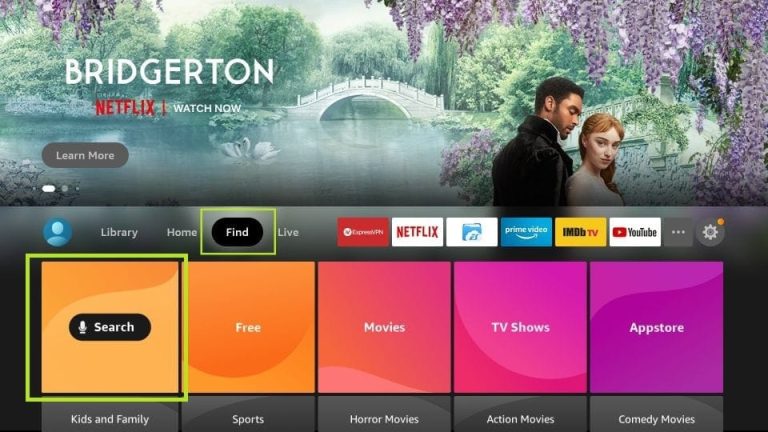
2.On your device’s home screen, navigate to the ‘Find’ section and select ‘Find’ > ‘Search’.

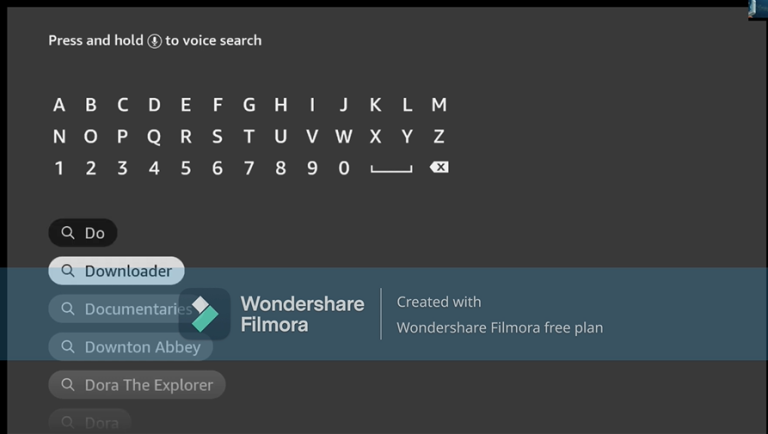
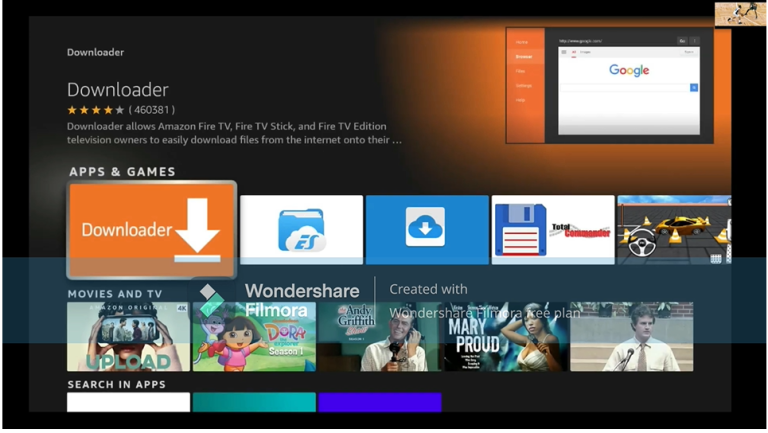
3.Search for the app by typing ‘Downloader’. Once it appears in the search results, select it. On the next screen, click the Downloader icon to download and install the app.

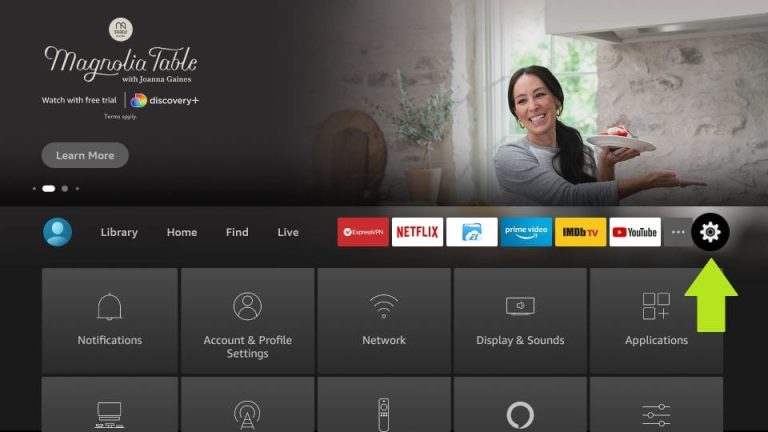
4.Once the Downloader app is installed, return to the Firestick home screen. In the menu bar, select ‘Settings

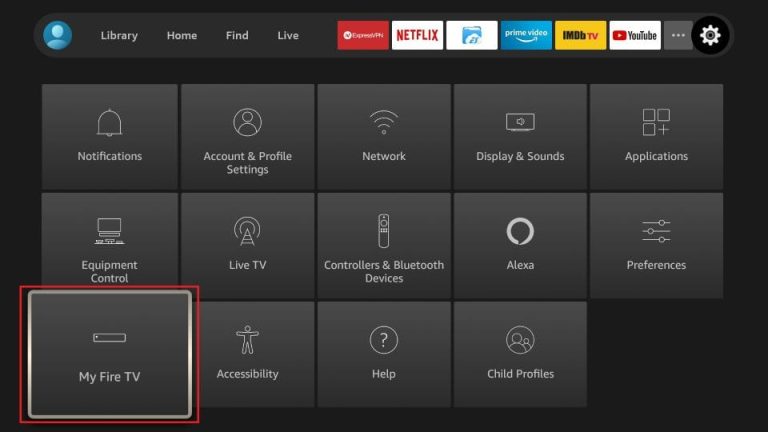
5.In the Settings, choose the option My Fire TV

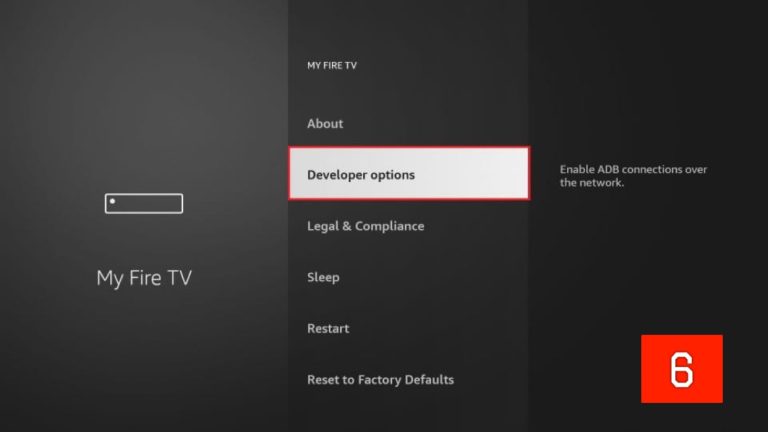
6.On the next screen, select ‘Developer Options’. If you don’t see this option, go to ‘About’, highlight your Firestick’s name, and click it 7, 8, or 9 times to enable Developer Options. Afterward, press the back button on your remote to return to the previous screen, and the option should now be available

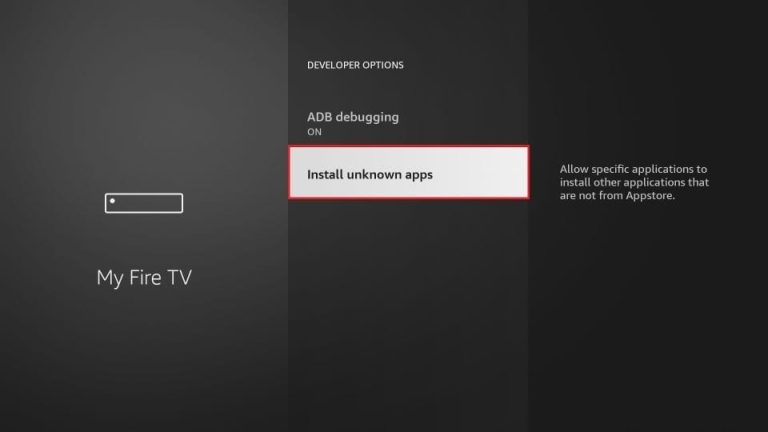
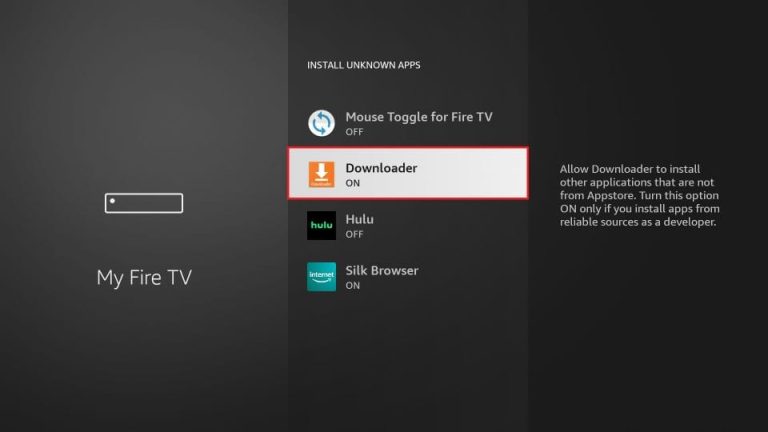
7. Click Install from unknown apps.

8. Click Downloader to change the status to ON.

By doing this, you’ve configured your Firestick to allow the installation of TCH Plus TV and other third-party apps. Now, follow the steps below

9.Now, open the Downloader app. When you launch it for the first time, you’ll see a series of prompts—simply dismiss them until you reach the main screen

On this screen, click the URL textbox on the right side (ensure the ‘Home’ option in the left menu is selected), where it says ‘http://’.

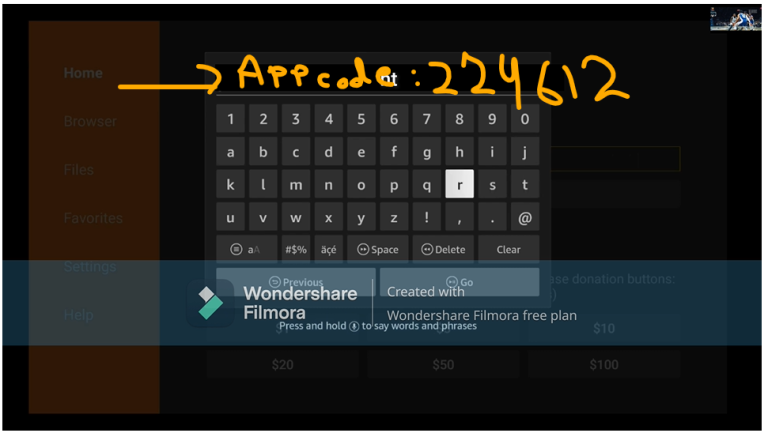
10. Go ahead and enter the following numerical downloader code for the player you would like.

Downloader App Code: 809636

Give it a minute or two until the Chosen app is downloaded onto your Firestick device

12. When the download has completed, the Downloader app will run the APK file and the installation will start.

13. Open the app once downloaded.

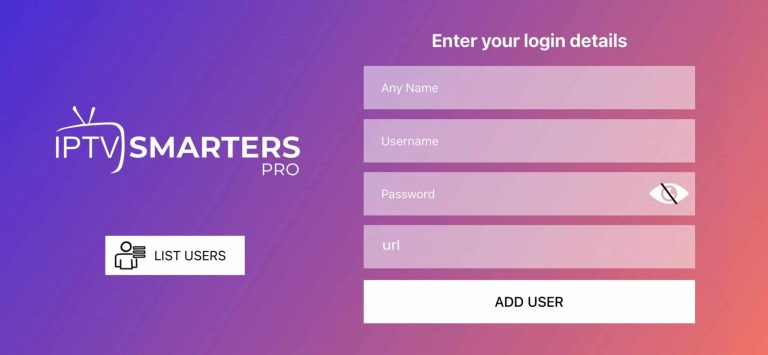
15. Enter the login details that we have provided.

Now Click on “ADD USER” to proceed to the next section

1) From the main menu on your Android TV or Fire TV, go to the ‘Search’ section and click on the ‘Search’ tile to proceed.

2) Type in the initial letters of ‘Downloader’ in the search bar, then use the arrow keys and the Enter button on your remote to select the matching result.

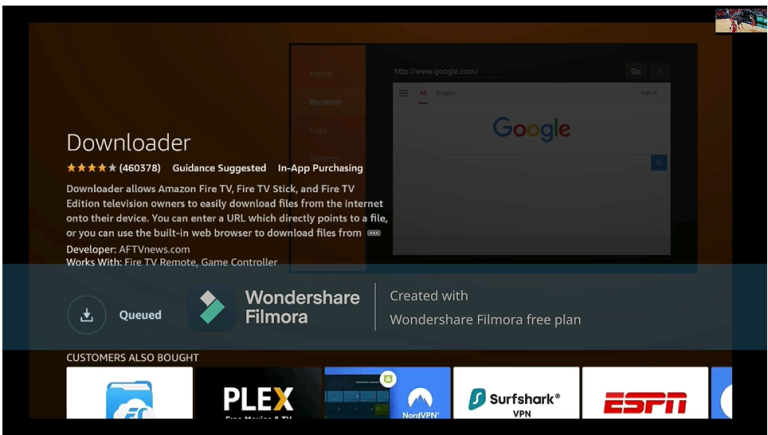
3) Open the entry for the Fire TV Downloader app.

4) Press Enter on your remote control to start the installation

5) App is downloading. Open the app after installation.

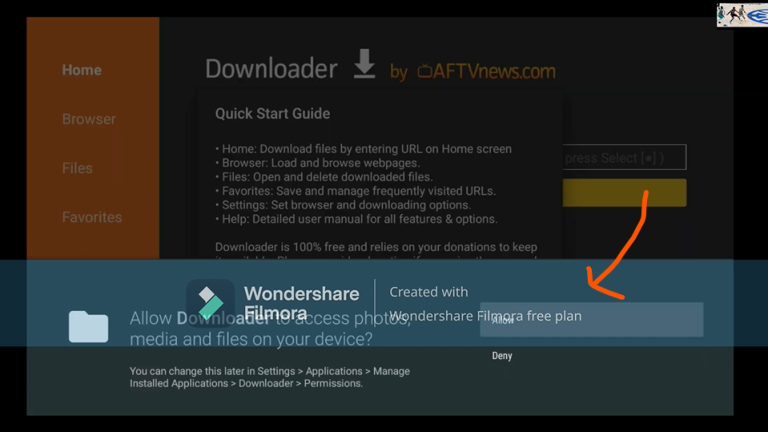
6) When you start the app for the first time, you must grant the downloader access to your file system. Select the option “Allow”.

7) On the Downloader homepage, you’ll see a field in the center of the screen where you can enter a number. This number will be provided to you after purchase or when using a test account. Simply input the number and press ‘Go’ to continue


8) The app will begin downloading now. Once it’s installed, open it and enter your login credentials (username and password) – and you’re all set


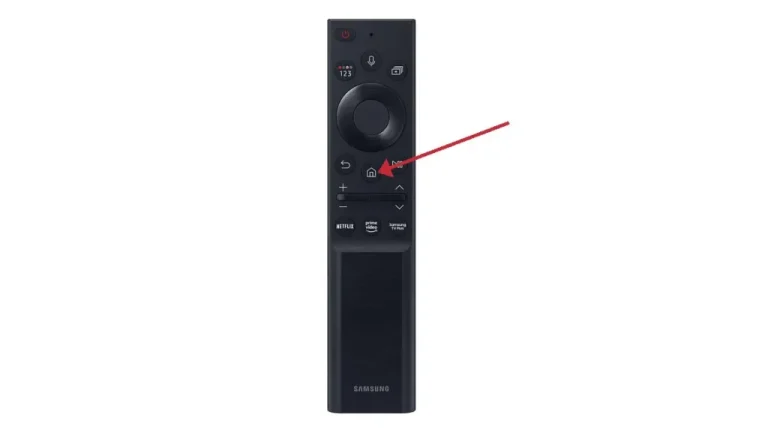
1)Press the ‘Home’ button on your remote, which is typically represented by a house icon or a 3D cube

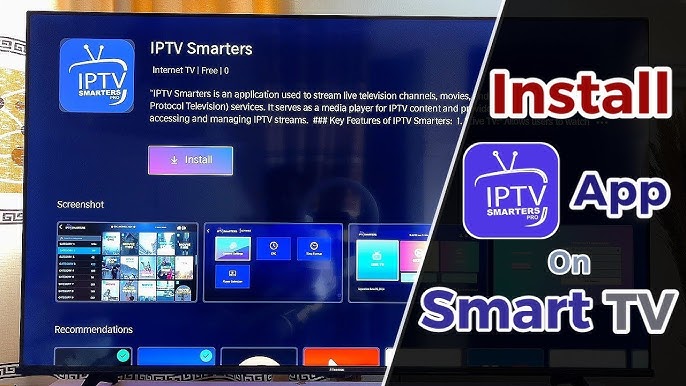
2) Navigate to the ‘Apps’ section and search for IPTV Smarters Pro. Once you find the app, select it and proceed with the installation.”

3) After the installation is finished, launch the IPTV Smarters Pro app by selecting ‘Open,’ then enter your login credentials to get started

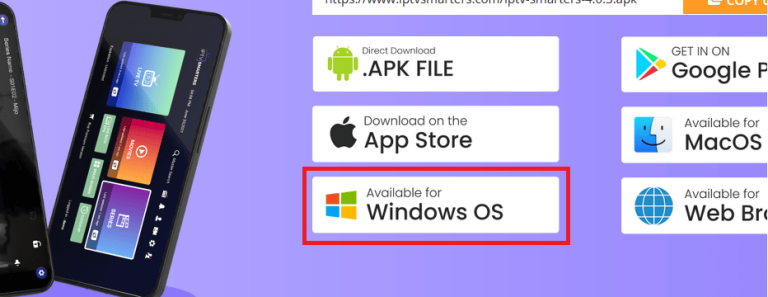
1)Download and install IPTV Smarters Pro. Download link: [https://www.iptvsmarters.com/#downloads]

2) After that simply start and enter your login details:

1)Download, install and start Smarters.

2) After installation, simply log in with your access data (user name and password).

How to Find Prostreamz on Google TV (Apps Store)

Follow these quick steps to easily locate and install the Prostreamz app directly from the Google TV Store.

How to Find Prostreamz on Google TV
1

Go to Apps

From the Google TV home screen, use your remote and go to Apps.

2

Open Search

In the Apps tab, select the Search icon.

3

Search for Prostreamz

Type "Prostreamz" (or "Prostreamz Ultra") using the on-screen keyboard or your voice remote.

4

Select the App

From the search results, select Prostreamz and open it.

5

Install the App

Click Install to download and install the app on your Google TV.

Tip: You can also use the Google Voice Search feature on your remote by saying "Prostreamz" to jump directly to the app.
Scroll to Top
Seraphinite AcceleratorOptimized by Seraphinite Accelerator
Turns on site high speed to be attractive for people and search engines.